For caterers, supper clubs & pop-up kitchens
Sell out the drop before you fire the ovens.
Pre-orders with headcounts, dietaries, and pickup windows — collected through one link, totalled automatically, and lined up in a dashboard you can cook from.
Free while in beta · No card required
Ember & Rye Catering
Friday drop — pre-order
Buffet menu · per head
$24.00
Grazing box · serves 6
$45.00
Drinks package · per head
$9.00
Live demo — try the steppers. Nothing is sent.
Every event, the same scramble
Headcounts drift for weeks
The client says "around forty", then thirty-two, then fifty-one on Thursday night. Your shopping list never had a chance.
Dietaries live in five threads
Two vegans in an email, a nut allergy in a DM, gluten-free in a voicemail. Miss one and it's the only thing anyone remembers.
Pop-up drops outgrow DMs
You post the menu, forty replies land in two hours, and you spend the evening copying names into notes instead of prepping.
Why QuickOrderForm
Built for menus that sell out
Per-head pricing that adds up
List menus per head and let the quantity be the headcount — the total updates live as the client picks, so quotes stop being emails.
Dietaries captured up front
A required dietary field on the form means allergies arrive with the order — not in a panicked message during service.
Limited drops, actually limited
Cap each item at what the kitchen can produce. When the 40 boxes are gone, the form says so — no overselling, no awkward refunds.
Pickup windows that stagger the queue
A pickup-slot dropdown spreads collection across the evening so your pop-up has a line that moves, not a crowd.
From link to fulfilled, in three steps.
- 1
Build the menu as a form
Menus and add-ons as products, plus date, dietary, and pickup-window fields. Duplicate the pattern for every event.
- 2
Post the link everywhere the drop lives
Instagram story, newsletter, the client email thread. Orders land themselves — you stay in the kitchen.
- 3
Cook from the dashboard
Confirmed headcounts, flagged dietaries, and pickup slots in one list. Export CSV for your prep sheet and tick orders off as they go out.
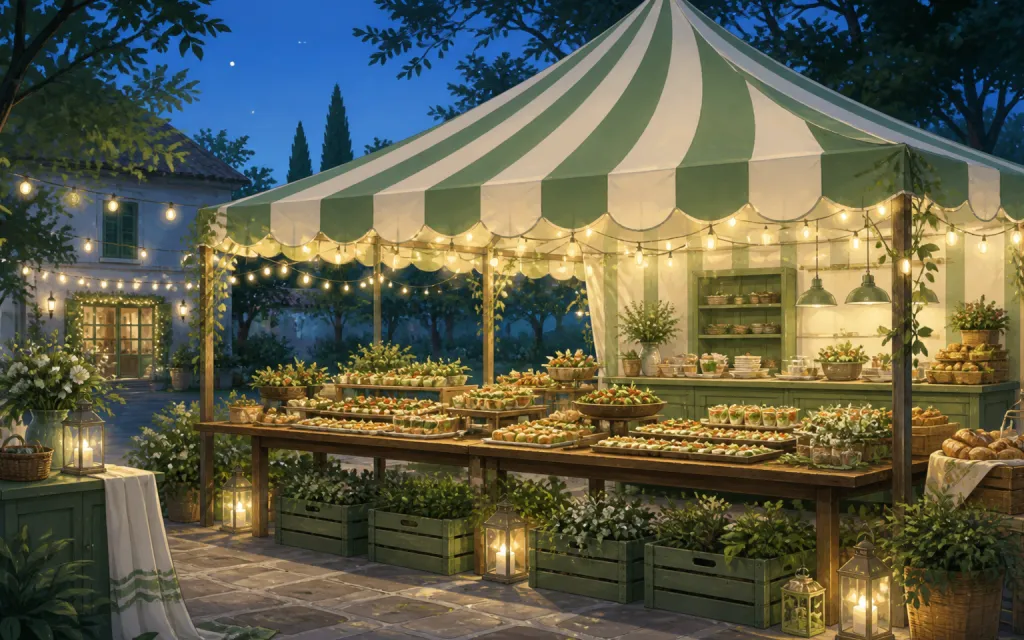
What to put on a catering or pop-up order form
Catering forms earn their keep by asking everything up front — so the week of the event is cooking, not clarifying. The essentials:
- ✓
Menus & add-ons as products
Per-head menus, family trays, drinks packages — priced items make the order self-quoting.
- ✓
Event or pickup date (date field, required)
The one detail you can't cook without. A required date field means it's never missing.
- ✓
Dietary requirements (long text, required)
Even "none" is an answer — requiring the field means every allergy is on the ticket, in writing.
- ✓
Pickup window (dropdown)
Fifteen-minute slots turn a pop-up crowd into a smooth queue and keep food at temperature.
Frequently asked questions
+Can I take a deposit through the form?
Not yet — payments are on our roadmap. Today the form locks in the order and the total; most caterers invoice the deposit separately or settle at pickup.
+How do I stop orders when I hit capacity?
Two levers: per-item maximums cap each menu at what you can produce, and switching the form to Closed stops all orders while keeping the link alive.
+Can I reuse the form for the next event?
Yes — edit the title, date options, and menu, and the same link carries over. Or keep one form per event so each drop's orders stay in their own list.
+How do clients confirm what they ordered?
The confirmation screen shows a receipt-style summary with line items, the total, and their order number the moment they place it.
Also made for the way they sell
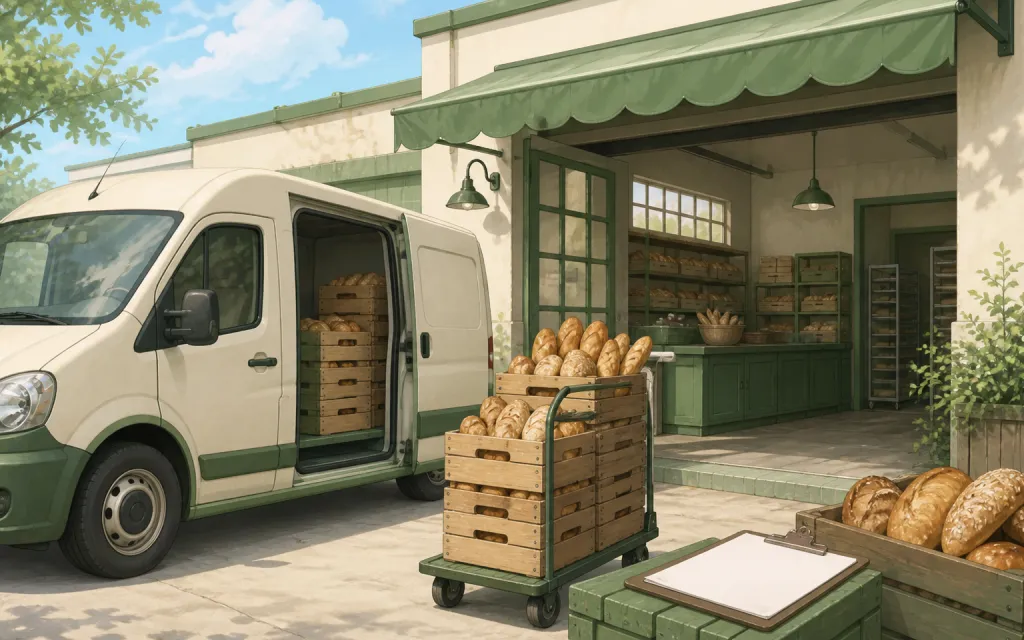
Wholesale
Weekly standing orders from your stockists
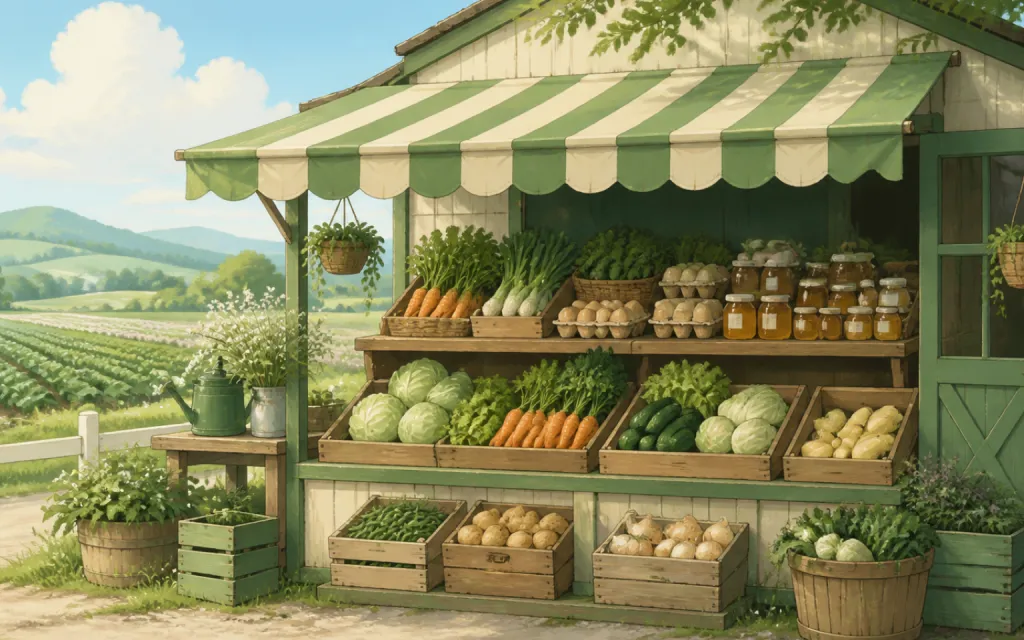
Farm stands
CSA boxes and honey jars by the crate
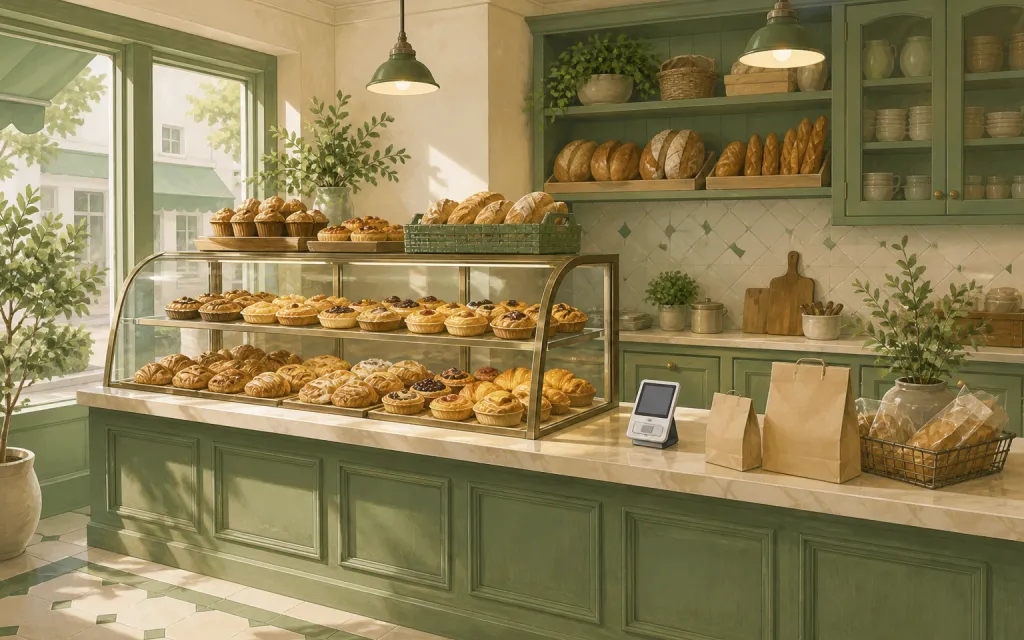
Bakeries
Weekend menu drops that sell out by Friday
Restaurants
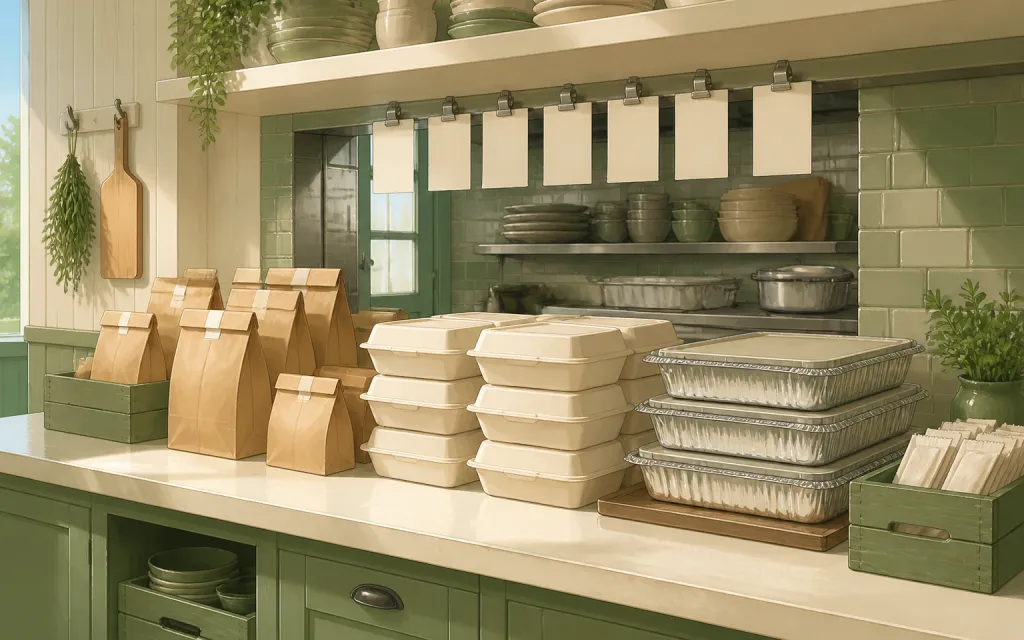
Pre-orders and catering trays for the weekend
T-shirts & merch
Size and color runs counted before the print deadline
Fundraisers
Campaign orders tallied without the paper envelopes
Thanksgiving pre-orders
Pies and dinners claimed before the Wednesday rush
Christmas cookies
Cookie boxes and tins sold in limited batches
Florists
Arrangements ordered ahead with dates and card messages
Photographers
Picture-day packages matched to the right subject
Spirit wear
School tees and hoodies sized and sorted by classroom
Custom apparel
Embroidered and printed clothing orders, spec'd and counted
Schools & PTAs
Yearbooks, lunches and spirit sales from one account
Sports teams
Kit sized per player, numbered, and reordered each season
Embroidery & printing
Custom decoration jobs quoted right the first time
Valentine's pre-orders
Roses, chocolates and gift boxes claimed before the 14th
Home bakers
Cottage-kitchen orders out of the DMs and into a list
Meal prep
Weekly menus and meal packs on a repeating link
Next drop: sold out by Tuesday, calm by Friday.
Free while in beta — unlimited forms, unlimited orders.
Create your form — free